

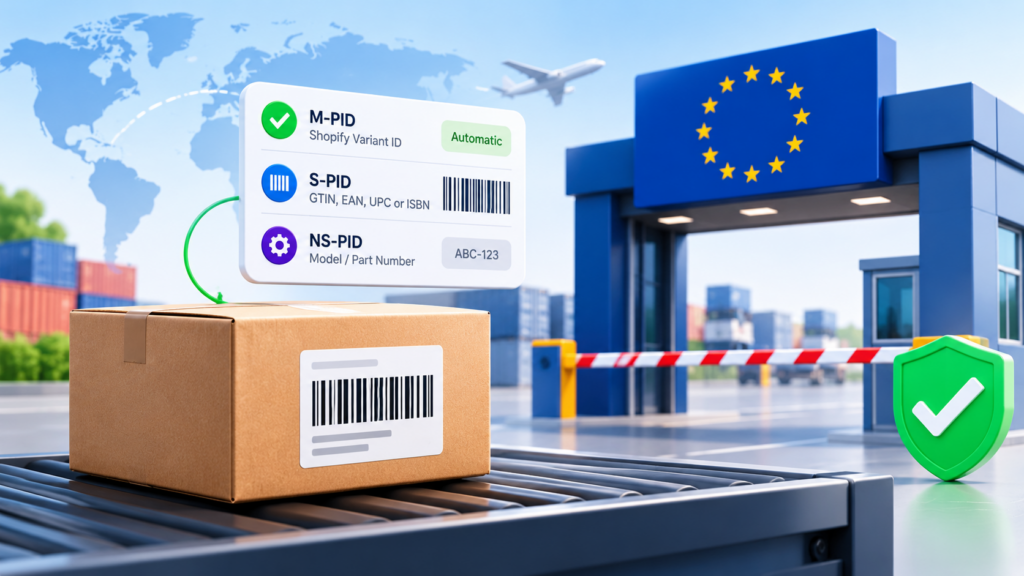
Since 1 November 2026, the EU requires product identifiers for every item in a parcel sent to an EU customer from outside the EU, when the parcel is worth €150 or less. On Shopify, you meet it by adding barcodes to your product variants. Missing identifiers can mean a held parcel, a rejected parcel or return-to-origin fees.
Key takeaways
- The rule covers parcels sent from outside the EU to EU customers, worth €150 or less, from 1 November 2026.
- Customs asks for three identifiers per item: M-PID, S-PID and NS-PID.
- M-PID is automatic on Shopify. It uses the variant’s ID, so you add nothing.
- S-PID is a standard barcode (GTIN, EAN, UPC or ISBN). If a product truly has none, you can declare “No EU standardized identifier” instead.
- NS-PID is the manufacturer’s own code, such as a model or part number. If you don’t add one, Shopify falls back to other identifiers in a set order.
- Since 1 November, a label for a qualifying parcel can’t be bought until a missing identifier is fixed or the declaration is on.
- Shopify variants now hold up to 20 barcodes, each with a type, so one variant can carry all the codes it needs.
What are EU product identifiers and who needs them?
EU product identifiers are codes that tell customs exactly what is inside a parcel. From 1 November 2026, the EU requires them for every item in a parcel that is sent to a customer in the EU from outside the EU and is worth €150 or less. If you ship from the US, UK, Canada, Asia or anywhere else outside the EU straight to EU shoppers, this applies to you.
Shopify’s help center says a parcel that’s missing these identifiers can be held or rejected at customs, and you might be charged return-to-origin fees. That’s the real cost. It isn’t a fine on your listing. It’s a parcel stuck at a border, an annoyed customer and a shipping bill for a package that comes back.
One small wording difference is worth knowing about. Shopify’s help page says “worth €150 EUR or less”. The changelog entry from 24 October describes parcels “valued under €150”. The two are close but not identical at exactly €150. Follow the help page, and if you regularly ship orders right around that value, confirm with your carrier.
Who does this not apply to? If you ship from a warehouse inside the EU to EU customers, the rule as Shopify describes it doesn’t cover you. And if you sell mostly to the US, you can read the rest as a useful piece of catalog hygiene. Better barcodes help with POS, marketplaces and inventory counts anyway.
What are the three identifiers customs asks for?
EU customs asks for three identifiers per item: a merchant product identifier (M-PID), a standardized product identifier (S-PID) and a non-standardized manufacturer product identifier (NS-PID). Each one comes from a different part of your product data.
| Identifier | What it is | Where it comes from on Shopify |
|---|---|---|
| M-PID | Your own identifier for the item | The variant ID. Automatic, nothing to add |
| S-PID | A barcode issued under an international standard (GTIN, EAN, UPC, ISBN) | A barcode on the variant with the matching type |
| NS-PID | The manufacturer’s own code, like a model number, part number or style code | A barcode on the variant with the NS-PID type |
M-PID: the one you don’t touch
The merchant product identifier is your own ID for the item. Shopify uses the product variant’s ID, so you don’t need to add anything. This is the easy one. It’s also the reason variant-level data matters. Everything is stored per variant, not per product.
S-PID: the standard barcode
The standardized identifier is a barcode that follows an international standard: a Global Trade Item Number (GTIN), a European Article Number (EAN), a Universal Product Code (UPC) or an International Standard Book Number (ISBN). You add it to the variant with the matching barcode type.
A barcode saved with the Custom type is also accepted if it’s a valid GTIN of 8, 12, 13 or 14 digits. That helps if your old catalog has barcodes that were never typed.
If a product has no standardized identifier, you declare that instead. Customs refers to this declaration as Y081. We’ll cover how below.
NS-PID: the manufacturer’s own code
The non-standardized identifier is the manufacturer’s own code for the item, such as a model number, part number or style code. You add it to the variant as a barcode with the NS-PID type.
If a variant has no NS-PID barcode, Shopify uses one of the variant’s other identifiers instead, in this order:
- Its standardized barcode
- Any other barcode
- Its stock keeping unit (SKU)
- The variant’s ID
So a variant that already has a GTIN or a SKU already meets the NS-PID requirement. That’s good news for most stores. You may not need to add NS-PID codes at all, unless you want them on file for items that have a real model or part number.
Which goods don’t need identifiers?
The EU doesn’t require product identifiers for some kinds of goods. Shopify lists unprocessed agricultural and perishable goods in Harmonized System (HS) chapters 01 to 15, certain handmade and artisanal goods, and antiques, collectibles, works of art, stamps and coins.
The exemption is applied from the variant’s HS code. You can’t mark a product as exempt yourself. That’s an important detail. It means your HS codes now do real work. A wrong code can leave an exempt item looking non-exempt, or the other way around.
Shopify points to HS codes as the next step after identifiers, because product identifiers and HS codes are both required for EU shipments, and the HS code decides whether an item is exempt. If you haven’t reviewed your HS codes lately, put it on the list.
How do you add Shopify EU product identifiers to a variant?
To set up Shopify EU product identifiers, you add identifiers to each product variant that you ship to EU customers, using the Barcodes section in the Shopify admin. You’ll need the barcode printed on the product’s packaging, or the manufacturer’s model or part number.
Here are the steps from Shopify’s help center:
- From your Shopify admin, go to Products.
- Click the product you want to update. If it has variants, click the variant.
- In the Barcodes section, add the product’s GTIN, EAN, UPC or ISBN, and select the matching barcode type.
- Optional: add the manufacturer’s model, part or style number as another barcode, and select the NS-PID type.
- Click Save.
The identifiers are saved on each variant, so you add them once and they’re reused on every label and customs declaration for that variant.
For lots of products, Shopify says you can import a CSV file or use the bulk editor. In the bulk editor you can also enter barcodes with a barcode scanner instead of typing them in.
Which barcode type should you pick?
Each barcode has a type, and the value you enter has to match that standard’s length limit and allowed characters. If it doesn’t follow a standard, keep the type as Custom.
| Type | Accepted values | Typical use |
|---|---|---|
| Custom | Any value, up to 255 characters (default) | Non-GTIN codes such as Code 39 and Code 128 |
| GTIN | 8, 12, 13 or 14 digits | Unique, internationally recognized product ID |
| UPC | 8 or 12 digits | Retail products, mostly North America |
| EAN | 8 or 13 digits | Retail products, mostly outside North America |
| ISBN | 10 or 13 characters (can include X) | Books and e-books |
| ASIN | 10 letters or digits | Amazon’s internal catalog number |
| NS-PID | Any value, up to 255 characters | Model numbers, part numbers, style codes; used on customs declarations for EU shipments |
Two helpful behaviors are built in. If you enter a barcode that’s registered with GS1, the type is set to GTIN automatically. And if a saved barcode has the Custom type but its value is a valid GTIN, Shopify suggests GTIN as the type. You can accept or dismiss the suggestion. Shopify’s changelog from 29 October describes this as checking your barcodes against the GS1 registry so you can mark GTINs in one click on product pages and in the bulk editor.
There’s also a safety net. If your product name and vendor can be compared with the GS1 listing for that barcode and they don’t match, Shopify shows a warning. That can catch a typo, or a barcode that belongs to someone else’s product.
What if a product has no barcode at all?
If a product isn’t registered under any barcode standard, such as a handmade or one-of-a-kind item, you declare that it has no standardized identifier instead of adding an S-PID. You make the declaration in the Shipping section’s More details card, on the product page for a product without variants, or on each variant page.
Steps from the help center:
- Go to Products and click the product (or the variant).
- In the Shipping section, make sure Physical product is on, then click More details.
- Turn on No EU standardized identifier.
- Click Save.
Only do this when the product truly has no GTIN, EAN, UPC or ISBN. When the declaration is on, no standardized identifier is sent to customs for that item, even if one is saved on the variant. So switching it on by mistake would throw away a perfectly good barcode.
If you do have a GTIN available, use it. If your manufacturer can give you one, ask. Shopify’s barcode page also says you can request a GTIN from the manufacturer, or learn how to get one for a product you make yourself through the GS1 standards site.
What happens when you buy a shipping label?
When you buy a label in the Shopify admin for a parcel going to the EU, the identifiers saved on your products are added to the customs declaration and sent to the carrier. As of 1 November 2026, if an item in a qualifying parcel is missing a standardized identifier and doesn’t have the declaration turned on, the label can’t be bought until you fix the item.
You don’t have to leave the label page to fix it. Click Edit customs declaration and enter the identifiers for each item. For an item linked to a product, identifiers entered there are saved back to the product. A custom item that isn’t linked to a product keeps its identifiers on the customs declaration only.
That’s a handy rescue path. But it isn’t a plan. If your team discovers gaps one label at a time on a busy day, packing slows down and mistakes creep in. Fix the catalog first.
If you buy labels outside the Shopify admin, such as through a separate shipping app or directly from a carrier, Shopify says to make sure the product identifiers reach your carrier through the method you already use. In other words, Shopify’s label check only protects you inside Shopify.
Why did Shopify add multiple barcodes per variant?
Shopify now lets a variant hold up to 20 barcodes, each with an optional type. The changelog entry from 8 September 2026 lists UPC, EAN, ISBN, GTIN and ASIN as types, and Shopify’s help page also lists Custom and NS-PID. The same barcode value can’t be used twice on the same product or variant.
This matters for the EU rule because one variant now needs several codes. It can have a GTIN as its S-PID and a model number as its NS-PID. It may also need an ASIN for a marketplace and a supplier code for the warehouse. Before this change, a variant had a single barcode field, and merchants had to choose.
Shopify also made scanning smarter. Staff using Shopify POS can find a product by scanning or searching any of its barcodes, or its SKU. The 1 September changelog describes scanning or searching variants by any associated barcode, including identifiers such as GTIN, EAN, ASIN or SKU-based codes.
Two other details from the barcode help page are useful:
- Some sales channels might require a GTIN before a product can be published. Barcodes scanned with Shopify POS can be used to publish products on the Google & YouTube channel.
- Barcodes can be required when you sell on online marketplaces, sell wholesale to retail stores, or move products through a warehouse, distribution center or fulfillment service.
So the work you do for EU customs isn’t wasted effort. The same clean barcode data helps with channels, retail and fulfillment.
How should you audit your catalog?
Start with the products you actually ship to the EU. You don’t need to fix all 5,000 variants if only 300 go to Europe. A short audit finds the gaps quickly.
Here’s a simple approach.
- Export your products. Use Shopify’s export to get a spreadsheet of variants with their barcodes, SKUs and HS codes.
- Mark which variants ship to the EU. Use your order history from the last few months to see what customers actually buy.
- Check S-PID. For each variant, is there a valid GTIN, EAN, UPC or ISBN? Mark it green, or red if it’s missing.
- Check NS-PID. Does the variant have a model, part or style code? If not, note that the fallback order (standard barcode, other barcode, SKU, variant ID) will cover it, but add real codes where you have them.
- Decide who’s declaring. For items with no standard barcode, such as handmade pieces, decide whether the declaration applies.
- Check HS codes. Review them, because they decide exemptions and are required for EU shipments.
- Import or bulk edit. Fix everything in one pass with a CSV import or the bulk editor.
- Test with a real label. Buy a test label for an EU address in the admin and see if any item is flagged.
If you’re a smaller store, a quick sort in a spreadsheet may be all you need. Larger catalogs may need a developer to clean data in bulk. Our Shopify development services team can help with catalog data clean-up and custom workflows when you’ve outgrown spreadsheets.
A hypothetical example
Here’s an example to show the logic. It’s invented, not a real store.
Imagine a shop that sells ceramic mugs from a workshop in Canada and ships directly to customers in France and Germany. Mugs from a branded range have EAN barcodes from the manufacturer. A separate line of one-off glazed pieces has no barcode at all.
For the branded range, the store adds the EAN as the S-PID with type EAN. It adds the manufacturer’s style code as an NS-PID barcode. The M-PID is automatic.
For the one-off pieces, there’s no standard barcode, so the store turns on No EU standardized identifier for those variants. If the pieces qualify as handmade or artisanal under the exemption, the HS code on each variant has to reflect that, because the exemption comes from the HS code and the store can’t mark a product as exempt by hand.
Before the next label, the store buys a test label to confirm nothing is blocked.
What about custom items in Shopify EU product identifiers?
A custom item that isn’t linked to a product keeps its identifiers on the customs declaration, not on a product record. That’s what Shopify’s help center says when it describes entering identifiers from the label page. So if you do a lot of manual or custom orders, add the identifiers when you build the customs declaration each time, or create a product record you can reuse.
The label page also helps with one-off edits. But for anything you sell more than once, create a proper product with proper barcodes. That way the identifiers are added once and reused.
How does this fit with other EU changes?
If you sell into the EU, this isn’t the only change this year. Shopify has also been shipping updates around EU cancellations, returns and legal notices. Our post on the EU legal guarantee notice for Shopify covers the guarantee notice and label. And if you’re thinking about the whole picture for your store, our Shopify Fall ’26 Edition breakdown lists the other changes that landed this season.
Selling across borders also means dealing with currency and payment. If that’s on your list, our Shopify multi-currency payments guide is the place to start.
What do the top results miss about Shopify EU product identifiers?
Most guides say “add barcodes” and stop. Here are the gaps we see.
They don’t explain the three identifiers separately. M-PID is automatic. S-PID needs real work. NS-PID usually falls back to something you already have. If a guide lumps all three together, it makes the job sound bigger than it is.
They skip the fallback order. Shopify uses the standardized barcode, any other barcode, the SKU, then the variant ID when there’s no NS-PID. That means a variant with a GTIN or SKU already meets the NS-PID requirement.
They forget that the declaration can wipe out a barcode. Turning on No EU standardized identifier means no standardized identifier is sent to customs, even if one is saved on the variant. It’s meant for products with no barcode, not for ones you can’t be bothered to look up.
They skip HS codes. You can’t mark a product exempt yourself. The exemption comes from the variant’s HS code.
They ignore labels bought outside Shopify. Shopify’s check only works for labels bought in the admin. If you use another route, the identifiers still have to reach your carrier.
They treat the date as a deadline in the future. It’s already in effect. Since 1 November, qualifying labels can be blocked.
Common mistakes
- Putting a SKU in the barcode field as if it were a GTIN. A SKU isn’t a standardized identifier. Use a real GTIN, EAN, UPC or ISBN where you have one.
- Entering the wrong type. The value must match the type’s length and character rules.
- Using the declaration as a shortcut. It removes the standardized identifier from what’s sent to customs.
- Forgetting variants. Identifiers live on variants. A product with five sizes needs five checks.
- Ignoring HS codes. They decide whether an item is exempt.
- Assuming marketplace labels follow the same path. If you ship through a route other than Shopify’s label tool, confirm the data reaches the carrier.
- Leaving the fix until label day. Finding a gap while you’re packing an order costs time.
A checklist you can copy
- Confirm you ship from outside the EU to EU customers.
- List the variants that go to the EU.
- Add a valid GTIN, EAN, UPC or ISBN to each, with the right type.
- Add NS-PID codes where a model, part or style number exists.
- Use the No EU standardized identifier declaration only for items with no standard barcode.
- Review HS codes for every EU-bound variant.
- Import or bulk edit the fixes.
- Buy a test label to an EU address.
- Check what happens with labels bought outside Shopify.
- Tell your fulfillment team where to add identifiers if a label is blocked.
If you’d like help cleaning up a large catalog, or building a bulk process that fits your stack, contact our team. Our ecommerce development services cover data work across platforms, and if you run Magento alongside Shopify, our Magento development services team can look at both sides.
Frequently asked questions
What are the three EU product identifiers?
They’re the merchant product identifier (M-PID), the standardized product identifier (S-PID) and the non-standardized manufacturer product identifier (NS-PID). On Shopify, M-PID is the variant ID and is automatic. S-PID is a GTIN, EAN, UPC or ISBN barcode. NS-PID is the manufacturer’s code, such as a model or part number.
When did the EU product identifier rule start?
It took effect on 1 November 2026. It applies to every item in a parcel sent to a customer in the EU from outside the EU when the parcel is worth €150 or less.
Do Shopify EU product identifiers need a GTIN for every product?
Not always. If a product has a standardized barcode, add it. If it truly has none, such as a handmade or one-of-a-kind item, you can turn on No EU standardized identifier on the product or variant instead. Make the declaration only when no GTIN, EAN, UPC or ISBN exists.
What happens if I don’t add identifiers?
Customs can hold or reject the parcel, and you might be charged return-to-origin fees. On Shopify, a label for a qualifying parcel can’t be bought until the missing standardized identifier is added or the declaration is on.
What is NS-PID and do I have to add it?
NS-PID is the manufacturer’s own code for the item. You can add it as a barcode with the NS-PID type. If you don’t, Shopify uses another identifier in this order: the standardized barcode, any other barcode, the SKU, then the variant ID. A variant with a GTIN or a SKU already meets the requirement.
Can a Shopify variant have more than one barcode?
Yes. A variant can hold up to 20 barcodes, each with an optional type. The same barcode value can’t be used twice on the same product or variant.
Which goods are exempt from the identifier requirement?
Shopify lists unprocessed agricultural and perishable goods in HS chapters 01 to 15, certain handmade and artisanal goods, and antiques, collectibles, works of art, stamps and coins. The exemption is applied from the variant’s HS code, and you can’t mark a product as exempt yourself.
Does this apply to shipments from inside the EU?
Shopify’s guidance describes the requirement for parcels sent to EU customers from outside the EU. If you ship from within the EU, check with your carrier and customs advisor about whether anything applies to your setup.
The bottom line
Shopify EU product identifiers sound heavy, but on Shopify most of it comes down to barcode hygiene. M-PID takes care of itself. S-PID means a valid GTIN, EAN, UPC or ISBN on each variant, or an honest declaration when none exists. NS-PID usually falls back to codes you already have.
Start with the variants you actually ship to the EU. Fix them in bulk, check your HS codes, and buy a test label. Do that this week, and you won’t be learning about customs rules one blocked label at a time.