

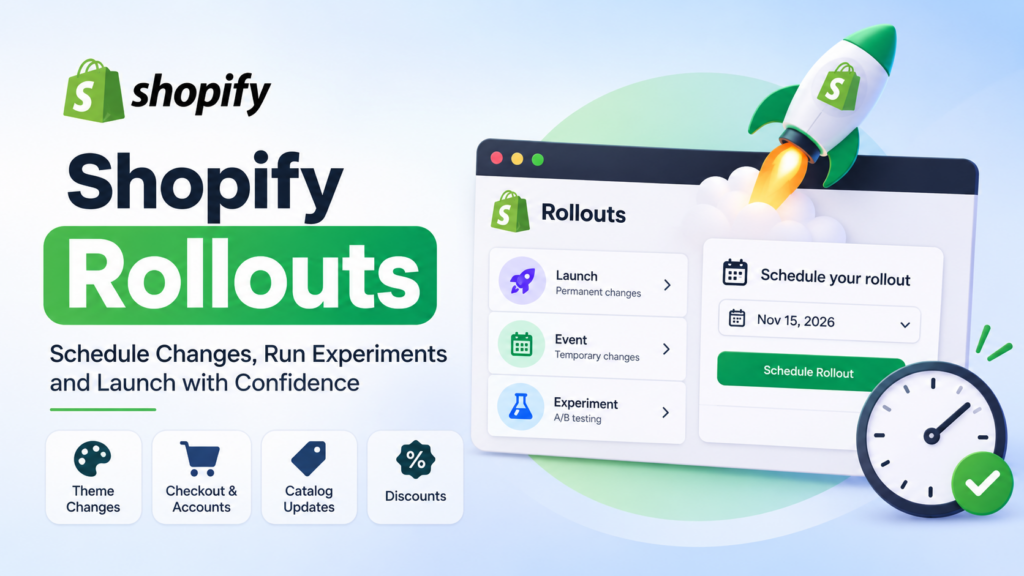
Shopify Rollouts lets you prepare changes to your theme, checkout, discounts or catalogs and schedule them to go live later. You can also run them as time-limited events or A/B experiments. You find it under Markets > Rollouts in the Shopify admin. It’s available on the Basic plan and higher, and experiments need Grow or higher.
Key takeaways
- A rollout is a scheduled set of changes to your main theme, checkout and accounts pages, discounts, product catalogs, or any mix of them.
- There are three types: a Launch (permanent), an Event (temporary, then rolls back) and an Experiment (control vs treatment).
- Rollouts work on the Basic plan or higher. Experiments need the Grow plan or higher.
- Theme and checkout changes only affect your online store. Catalog changes can reach more places, depending on the type and the traffic percentage.
- A Launch is permanent once it runs. You can’t revert it afterwards, so test before you schedule.
- Visitors can’t be targeted by segment, tag or device. Groups are random.
- The biggest hidden risk is a price or availability mismatch between your store and your ads or feeds when a rollout reaches less than 100% of visitors.
What are Shopify Rollouts?
A rollout is a scheduled set of changes to your online store’s main theme, checkout and accounts pages, discounts, product catalogs, or a combination of those. You pick a date and time, and you decide whether the changes stay for good or only for a set period.
Before Rollouts, most merchants handled a big sale or a redesign the same way. You duplicated the live theme, edited the copy, then hit publish at midnight and hoped nothing broke. You’d also have someone ready to switch discount codes on and off by hand. Rollouts moves that whole routine into one place, with a schedule, a preview and a clear status for each change.
Shopify rolled the feature out in stages across 2026, and its own changelog shows the order. Storefront changes came first, on 31 March 2026. Support for scheduling, gradually publishing and A/B testing new themes and checkout and customer account configurations followed on 5 June. A set of clearer controls for combining changes and spotting conflicts arrived on 22 September. Discounts joined on 2 October, and catalog changes (pricing and product availability) on 23 October.
So there are now four kinds of change you can put into a rollout. Knowing which is which is the key to using it well, so let’s go through them.
What can you change with a rollout?
You can add one change to your main theme, one change to your checkout and accounts configuration, one or more catalog changes, and one discount change. A single rollout can hold several of these together.
Here’s how each one works in practice:
| Resource | Change you can make | Supports content/translation changes |
|---|---|---|
| Online store theme | Edit the main theme | No |
| Online store theme | Replace the main theme | Yes |
| Checkout and accounts | Replace the configuration | Yes |
| Catalogs | Set a catalog to Active or Draft | No |
| Discounts | Activate or deactivate discounts | No |
Theme changes
You have two choices. You can edit your current main theme inside the theme editor, and those edits apply only to that rollout. Or you can replace your main theme with another theme that’s already added to your store.
If you edit the main theme, you need to save the rollout before you can start editing. Areas of the theme you didn’t touch stay in sync with the customizations on your published theme, which is handy. You won’t have to remember to copy a banner change across to a second theme copy.
If you replace the theme, you can also update the replacement theme’s content and translations with a compatible translation app, such as Translate & Adapt. There’s a catch. You can’t use manual translations, CSV uploads, an incompatible app or the “edit default theme content” option for a rollout’s replacement theme. Compatible apps need to use Shopify’s Admin API, so ask the app developer if you’re unsure.
Two more limits matter. Rollouts can’t be applied to vintage themes, and you can’t change Liquid templates as part of a rollout. That second one is worth planning around. If your seasonal campaign needs a new template file, that code change has to land on your live theme another way, and then the section and setting changes can ride in the rollout.
Checkout and accounts changes
You can swap in a different checkout and accounts configuration. You create the configuration first, then select it when you add the change. You can still edit the replacement configuration after it’s in the rollout.
Only one checkout and accounts change fits in each rollout. And checkout changes apply to your online store only. Headless and custom storefront checkouts aren’t supported for this, and they can’t be tested with rollouts.
Catalog changes
A catalog change sets a catalog to Active or Draft. Setting it to Active publishes its prices and product availability. Setting it to Draft withdraws it. A rollout can hold more than one catalog change, so you can switch one price list on while another goes off.
This is the one that needs the most care, because it can touch more than your storefront. We’ll come back to that below.
Discount changes
A discount change activates or deactivates discounts you’ve already created. You can add up to 250 discounts to a rollout. A discount can only be part of one unended rollout at a time.
One detail trips people up. A discount keeps its own active dates, and those dates apply independently of the rollout. A discount is active for a visitor when its own dates apply, or when an active rollout that activates it applies to that visitor. And a rollout that deactivates the discount makes it inactive for the visitors in the rollout, even if the discount’s own dates say it should be running.
What are the three types of rollouts?
Shopify gives you three types: a Launch, an Event and an Experiment. The type sets the defaults for dates, audience and what happens to the changes when the rollout ends.
Launch. This is the default. Changes apply to all eligible visitors and they’re merged into your store permanently. You can launch gradually or all at once. A Launch has no change-level traffic split.
Event. An event publishes your changes for a set period, then rolls them back when it ends. It needs an end date. Use it for something time-boxed, like a seasonal sale. If you decide you want to keep the changes, you can apply the rollout permanently.
Experiment. An experiment compares two versions: a treatment and a control. The control shows the current state of the things you changed. The treatment shows them as the rollout changes them. By default a new experiment uses a 50/50 traffic split and an end date 90 days after it starts, and you can change both before saving. Experiments need the Grow plan or higher.
One neat detail: the type stays in sync with your settings. If you pick Launch and then add an end date, the type changes to Event on its own. That’s because a Launch applies permanently, and a rollout with an end date doesn’t.
Which type should you pick?
Think about what you want to be true on the day after.
- You want the change to stay: pick Launch.
- You want it gone on a set date: pick Event.
- You aren’t sure it helps: pick Experiment, and let the results decide before a full Launch.
A good habit is to run a risky change as an experiment first, then repeat the winning version as a Launch.
What do you need before you start?
You need a plan that supports it, the right staff permissions and the pieces you want to roll out already built. Rollouts are available on the Basic plan or higher, and experiments on Grow or higher.
Staff permissions are more detailed than most people expect. These people can create and manage rollouts:
- The store owner and organization owner
- Users with the Administrator or Organization administrator roles
- Users with a Store role that includes Markets > Rollouts permissions, plus the permissions for each change type they add
For individual changes, Shopify lists the extra permissions. Replacing a checkout and accounts configuration needs the “View and edit checkout and customer accounts” permission. Adding a discount change needs the Discounts permission. Adding a replacement theme needs Online store > Themes, and editing your current theme in a rollout also needs Edit code. Reviewing a catalog change needs Catalogs > View, and adding or editing one needs the View and “Create and edit catalogs” permissions, which in turn require View products.
If a team member says they can’t see a button, check permissions before you check anything else.
You should also build the pieces first:
- To replace your theme, add the replacement theme to your store.
- To replace checkout and accounts, create the configuration.
- To add a catalog change, create the catalog. It doesn’t need to be assigned to a market yet, but customers won’t see the change until it is.
- To change discounts, create the discounts.
How do you create a rollout, step by step?
You create a rollout from Markets > Rollouts in your Shopify admin. It takes three stages: create it, add changes, then configure the details.
Step 1: Create the rollout. Go to Markets > Rollouts and click Create rollout. Give it a name that tells you what it is, such as “Summer Sale 2026”. Pick Launch, Event or Experiment from the type menu.
Step 2: Add changes. In the Changes section, click Add changes. Choose the category.
- For online store changes, either click Edit theme to prepare changes on your current theme and save, or pick a replacement theme.
- For checkout and accounts, pick the replacement configuration.
- For catalogs, search for each catalog and choose Set to active or Set to draft. Each catalog you pick defaults to active until you change it, so mark the ones you want withdrawn as draft.
- For discounts, select each discount and set whether it’s activated or deactivated for rollout visitors.
Click Apply. You can add other types of change afterwards. Remember the limit of one theme change and one checkout and accounts change per rollout.
Step 3: Configure the details. Set the audience, the start date and the end date.
Traffic allocation
In the Audience section, Traffic allocation sets the percentage of eligible visitors the rollout applies to. It applies to every change in the rollout. If you set it below 100%, you must also pick a start date and an end date.
The eligibility setting shows which markets the rollout applies to. You can’t edit it, because the markets are decided by the changes you added. A theme replacement always applies to all markets.
Here’s a limit that surprises people. You can’t target a rollout to a customer segment, a customer tag or a device. Visitors are put in groups at random.
Start and end dates
Dates use your store’s timezone from Settings > General. The label changes with the type: “Changes publish” for a Launch, “Event runs from” for an Event and “Experiment runs from” for an Experiment.
You must set an end date if traffic allocation is under 100%, or if the traffic split gives the treatment less than 100%. Shopify shows a description of what happens when the rollout ends, so you can check the behavior before you save.
Check conflicts before you save
While you configure a rollout, Shopify checks it against your other rollouts and shows conflicts. “Resolve rollout conflicts” means you must fix the issue before saving. “Review rollout conflicts” means you can save, but the message explains how another rollout affects yours.
Don’t skip these messages. Overlapping rollouts can change traffic allocation and which changes visitors see.
How do rollouts treat visitors and traffic?
Each visitor is put in a group before the page loads, so the page doesn’t flicker between versions. The group is saved in an essential cookie. People stay in the same group when they return until the cookie expires or is cleared.
A few details follow from that:
- A new browser or a new device gets a new group, which might be different.
- If you change the traffic split during an experiment, only new visitors are affected.
- Visitors get a group even if they don’t consent to tracking, but only visitors who consent are counted in the results.
- If both versions are shown to a visitor in the same browser, that visitor isn’t counted in the experiment’s results.
- Your theme and apps can’t read a visitor’s group.
That last point matters for developers. You can’t write custom code that says “if this visitor is in the treatment, show X”. Rollouts decides what the visitor sees. Your code doesn’t.
What happens when rollouts overlap?
You can schedule rollouts with overlapping dates, including several experiments. Shopify distinguishes between the intended allocation (the percentage you set) and the effective traffic (the calculated share after other active rollouts are taken into account). The two can differ.
Some changes require traffic to be split between conflicting rollouts. Shopify calls this mutual exclusion. Others can overlap. For themes, the rules are:
- Theme replacement changes always split traffic.
- Theme edit changes can overlap.
- If a theme edit rollout and a theme replacement rollout overlap, the replacement gets its traffic first. The theme edit then applies only to the remaining traffic.
Each experiment gets its own independent copy of the control. If you edit the control in one experiment, the controls in your other experiments don’t change.
The practical advice is to avoid overlapping experiments on the same part of the store unless you really mean to. When the set of active rollouts changes, open each rollout’s traffic allocation details and read them again.
What are the risks with catalog changes, ads and feeds?
Catalog changes are the riskiest part of Rollouts, because they can update prices and product availability in several places at once. Shopify spells out where.
A rollout that publishes catalog changes to 100% of visitors updates prices and availability in your online store. Depending on the catalog’s markets and sales channels, it can also update your checkout and cart, your headless and custom storefronts, Shopify POS and your Google & YouTube product feeds.
Shopify’s help center breaks down reach by type and audience:
| Rollout type | Audience reach | Where it applies |
|---|---|---|
| Launch | 100% | All areas, including online store, ads, listings and feeds |
| Event | 100% | All areas, including online store, ads, listings and feeds |
| Event | Less than 100% | Online store only |
| Experiment | Any | Online store only |
Here’s the problem. If a rollout shows a different price to part of your visitors, your ads and feeds still show the old price. Shopify warns that this can create a mismatch: a different price, an unavailable product, a page error, different shipping information or a different discount. Some channels review the product information in ads, listings and feeds. If it doesn’t match your store, products, ads or listings might be reviewed or stop being displayed. Google and Meta can also delist products or suspend an account for mismatched offers.
To lower the risk, Shopify suggests several approaches:
- Set traffic allocation to 100% so product details match everywhere.
- Pause ads for the affected products while the rollout runs.
- Remove the affected products from listing channels for the duration.
- Review feed rules, supplemental feeds and product URLs.
- Monitor channel status while the rollout is active.
If the products in your rollout aren’t in ads, listings or feeds, you don’t need to do any of this.
Also remember what happens when a rollout is paused or an Event ends. A rollout only changes whether a catalog is active or draft. It doesn’t restore a copy of your catalog from when the rollout started, and any edits you make to a catalog while the rollout runs stay in place. Shopify POS and product feeds return to the catalog’s current prices on their next sync. Until then they may still show the published prices.
Search engines and organic traffic
Organic search results don’t go through the same feed review as shopping ads. A rollout doesn’t put organic listings at risk in the same way. But availability changes, URL changes and page errors can still affect the URLs that search engines have indexed. Shopify recommends you keep product URLs stable, avoid temporary page errors for indexed products, and use a rollout that reaches all visitors for important availability changes.
If you care about search, that’s useful. It also fits with how we think about launches in general. Our ecommerce migration SEO checklist covers URL stability in more depth.
How do you manage a rollout once it’s live?
You manage rollouts from Markets > Rollouts. What you can do depends on the status.
| Status | What it means | What you can do |
|---|---|---|
| Draft | Saved, no start date or no changes | Edit configuration, edit changes, archive, delete |
| Scheduled | Saved with a start date, not yet active | Edit configuration, edit changes, archive, delete |
| Active | Currently running | Edit configuration, edit changes, pause, end |
| Paused | Paused before its end date | Edit configuration, edit changes, resume, end, archive, delete |
| Ended | Reached its end date | Archive, delete |
If you end an active rollout early, you choose between rolling the changes back and applying them permanently. Applying is a one-way door: after you apply a rollout, you can’t revert the changes. Archiving or deleting is also final. You can’t unarchive or restart an archived rollout, you can’t recover a deleted one, and archiving a rollout permanently deletes its theme changes. You also can’t archive or delete an active rollout.
Where do you see a rollout’s effects? Shopify adds indicators in the places the change touches.
- On the Online Store page, a Rollouts submenu appears on your main theme’s card.
- On Settings > Checkout, a Rollouts section lists the rollout and its status.
- On a catalog’s details page, a badge opens a list of unended rollouts that include it.
- On the Discounts page, a Rollout column shows which discounts are in a rollout.
- On Markets pages, an icon marks markets affected by rollouts. Click a rollout to preview that market’s configuration in View As mode.
Publishing a new theme while rollouts are pending
This one catches teams out. If an unended rollout has theme edits and you publish a different theme from Online Store or the theme editor, Shopify warns you. If you continue, the theme edits in those rollouts are removed, though their other changes stay. If you try to publish from Shopify CLI, the GraphQL Admin API, the Shopify app or another app, the theme isn’t published at all until you end or archive those rollouts.
So if your agency or developer deploys themes through CLI or CI, tell them which rollouts are live. Otherwise a deploy can quietly fail or wipe a rollout’s theme edits. You also can’t publish a theme that a rollout uses as its replacement until that rollout ends.
How do rollout analytics work?
A rollout starts collecting analytics after you launch it. Click it in Markets > Rollouts to see its analytics and traffic allocation. A few limits are worth knowing before you promise anyone a clean report.
- Results update a few minutes after each visit, not in real time. Bot traffic isn’t counted.
- You can’t customize the metrics and you can’t filter by device or country.
- Analytics measure visitors on your online store, cart and checkout. Visitors on headless storefronts and Shopify POS aren’t included.
- Launches calculate metrics over time based on exposures. Experiments use the experiment pipeline. So the same change run as a Launch and as an Experiment can show slightly different numbers.
- A rollout with a discount change reports the same metrics as any other. Discount-specific metrics, like revenue attributed to a discount, aren’t available.
The metrics you get depend on the type and the changes:
| Rollout | Metrics Shopify lists |
|---|---|
| Theme Launch | Gross sales, average order value, orders, total sales over time, sessions over time, conversion rate over time, new vs returning customers, bounce rate, conversion rate breakdown |
| Theme Experiment | Conversion rate over time, bounce rate, reached checkout rate, add to cart rate |
| Checkout and accounts Launch | Gross sales, average order value, orders, total sales over time, conversion rate over time, checkout conversion rate |
| Checkout and accounts Experiment | Checkout conversion rate |
When a rollout has both theme and checkout changes, the metrics show in separate sections.
How sessions are counted
A rollout session is counted when a visitor reaches a point where the changes could apply, such as viewing an affected product. That doesn’t confirm they actually saw the change. So an experiment’s treatment sessions can include people who never received the treatment.
With multiple changes in one rollout, a counted session doesn’t prove the customer experienced every change either. That’s one reason to keep experiments simple. One change per experiment gives you a result you can actually read.
If you offer discount codes in an experiment, remember that codes can be shared. An activated code applies only to visitors in the rollout, but those eligible visitors can still pass the code on, so it can reach people outside the group you’re testing.
What do the top results miss about Shopify Rollouts?
Most write-ups on Rollouts walk through the feature list and stop. Here are the gaps we see, and where a store owner usually gets hurt.
They skip the rules about ads and feeds. The mismatch warning is the most expensive thing to get wrong, yet it often sits in one line of a summary. If you run Google Shopping or Meta ads, read the reach table before you schedule a price test.
They don’t mention that a Launch is a one-way door. A Launch merges changes permanently at the scheduled time and the rollout ends. If you want something that comes back out, you need an Event.
They gloss over the developer workflow. Rollouts can block theme publishing from CLI and the API, and they can’t carry Liquid template changes. A team that deploys code and runs rollouts at the same time needs a shared calendar.
They treat experiments as a magic answer. Experiments only compare the changes you add. They don’t segment, and the results can include sessions where the treatment wasn’t actually shown. A test on a low-traffic store can run for its full 90 days and still tell you very little.
They forget the stack around Shopify. If you use a headless storefront, POS, or custom checkout, much of what a rollout does won’t reach it. Our guide to Shopify Hydrogen vs traditional themes is a good companion if that’s your setup.
A sample rollout calendar for a seasonal sale
To make this concrete, here’s a hypothetical plan. It isn’t a case study. It’s an example of how the pieces fit, using only the behavior described above.
Imagine a store running a two-week sale with a new homepage banner, a promotional discount and a temporary price list.
- Two weeks before. Build the sale theme edits in a rollout named “Winter Sale 2026”. Create a draft catalog with the sale prices. Create the discount code. None of it is visible yet.
- One week before. Add the catalog change (set to Active), the discount change (activated) and the theme edit to one Event rollout. Set traffic allocation to 100% so ads and feeds match the store. Add the start and end dates.
- Check conflicts. Resolve anything Shopify flags with other active rollouts.
- Tell the team. Developers hold off on publishing any new theme through CLI until the sale ends.
- During the sale. Watch the rollout analytics page. If something breaks, pause it. When it ends, the catalog goes back to its saved status.
- After the sale. If the sale banner and discount did well, decide whether anything should be applied permanently. If not, archive the rollout once you’re sure you won’t need its theme edits.
Notice what the plan avoids. It doesn’t run the price change as a partial experiment, because that would put the store out of step with its Google feed. If you did want to test a price, you’d pause the affected ads or pull those products from listing channels first.
Common mistakes to avoid
- Running a partial price test while ads are live. The mismatch can lead to disapproved products.
- Forgetting the end date. Anything below 100% traffic needs one. Without it, you can’t save.
- Applying a rollout permanently by accident. Read the end dialog. Roll back and apply look similar at a glance.
- Editing the control mid-experiment. Changing the treatment or control during an active experiment can affect its results.
- Deploying a theme from CI during a rollout. The publish can be blocked, or theme edits can be dropped.
- Assuming you can target a segment. You can’t. Visitors are grouped at random.
- Reading the numbers as exact. Results lag by a few minutes and exclude POS and headless traffic.
- Testing too many things at once. With multiple changes in one rollout, you can’t tell which one moved the numbers.
A pre-launch checklist
Run through this before you schedule anything.
- Confirm your plan (Basic for rollouts, Grow for experiments).
- Confirm your staff have the right permissions for each change type.
- Check that the replacement theme, configuration, catalogs or discounts exist.
- Decide the type: Launch, Event or Experiment.
- Set traffic allocation. If it’s below 100%, set start and end dates.
- Check ads, feeds and listings for any product whose price or availability changes.
- Read all conflict messages and clear the blocking ones.
- Tell your developers which rollouts are live.
- Preview markets in View As mode.
- Write down what “success” means before you start, so you don’t pick the metric afterwards.
How does this fit with the rest of Shopify’s 2026 updates?
Rollouts sits next to several other recent changes. Shopify’s Fall ’26 Edition brought a wider set of updates for stores, which we covered in our Shopify Fall ’26 Edition breakdown. The checkout side of the platform has its own deadlines, and our Shopify checkout extensibility guide explains why checkout configurations matter. If you operate in the EU, rollouts can also help you schedule policy changes, and our post on the EU legal guarantee notice for Shopify shows what those changes look like.
Not every store has the time or the in-house skills to build and test this way. If you need a team that can set up themes, checkout customizations and release processes around Rollouts, our Shopify development services cover that, and our broader ecommerce development services can help if your stack spans more than one platform. You can also contact our team with questions.
Frequently asked questions
What are Shopify Rollouts?
Shopify Rollouts is a feature for scheduling and testing changes to your store. A rollout is a set of changes to your main theme, checkout and accounts pages, discounts or product catalogs. You can launch it permanently, run it for a set period, or test it as an experiment. You manage it from Markets > Rollouts.
Which Shopify plans include Rollouts?
Rollouts are available on the Basic plan or higher. Experiments, which compare a treatment against a control, need the Grow plan or higher. Check Shopify’s current help pages for any plan changes.
Can I A/B test with Shopify Rollouts?
Yes. The Experiment type compares a treatment against a control with a traffic split. By default it’s 50/50 with an end date 90 days after it starts, and you can change both. You can’t target segments, tags or devices. Visitors are grouped at random.
Can I undo a Shopify rollout?
It depends on the type and the status. An Event rolls back automatically at its end date. You can pause an active rollout. But a Launch applies permanently at the scheduled time, and once you apply a rollout you can’t revert the changes. Archiving also permanently deletes a rollout’s theme changes.
Do rollouts change my Google Shopping prices?
They can. A rollout that publishes catalog changes to 100% of visitors can update your product feeds, including your Google & YouTube feeds, on their next sync. A rollout that reaches less than 100% of visitors, or any experiment, applies to your online store only, so your ads and feeds can show different prices from your store. Shopify recommends pausing ads or using 100% traffic to avoid mismatches.
Can I schedule discounts with Rollouts?
Yes. A discount change activates or deactivates existing discounts for visitors in the rollout. You can add up to 250 discounts, and each discount can be in only one unended rollout at a time. The discount’s own active dates still apply independently.
Can rollouts edit my Liquid templates?
No. You can’t change Liquid templates as part of a rollout, and rollouts can’t be applied to vintage themes. You can edit your main theme in the theme editor within a rollout, or replace the theme with another one.
Will rollouts work with a headless storefront?
Only partly. Theme and checkout changes apply to your online store only. Headless and custom storefront checkouts aren’t supported and can’t be tested with rollouts. Catalog changes published to 100% of visitors can reach headless storefronts and POS.
The bottom line
Shopify Rollouts takes the late-night “publish and pray” routine and turns it into a schedule with a safety net. Use a Launch for changes you want to keep, an Event for anything with an end date, and an Experiment when you need evidence. Keep experiments small, keep traffic at 100% when prices are involved, and tell your developers what’s live.
If you only do one thing this week, open Markets > Rollouts and build a draft for your next sale. Don’t schedule it yet. Just see what the changes look like on the page. That ten-minute look will show you whether your permissions, catalogs and discounts are ready, long before the day you need them.