

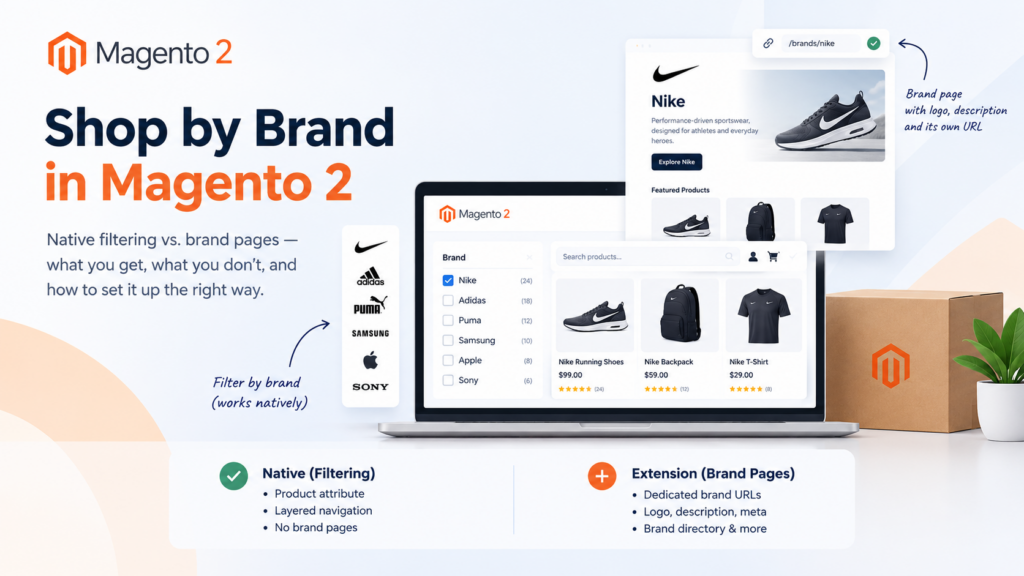
Magento 2 shop by brand is built with a product attribute, not a brand feature — Magento has no native brand entity. A dropdown attribute set to filterable gives you brand filtering in layered navigation in minutes. What it won’t give you is a brand landing page with a logo, description and its own URL. That gap is what extensions sell.
Key takeaways
- There is no native “brand” object in Magento 2. A brand is a product attribute you create.
- To be filterable, the attribute’s input type must be Yes/No, Dropdown, Multiple Select or Price.
- Layered navigation only works on categories set as an anchor.
- Native filtering produces filtered category URLs, not brand pages — no logo, no copy, no meta title, no brand directory.
- Decide whether you need a filter or a page before you shop for an extension. They’re different problems.
Someone asks for “shop by brand” and means one of two completely different things. Either they want shoppers to narrow a category by brand, which Magento does natively and well. Or they want a page per brand, with the brand’s logo and story and its own URL that can rank — which Magento does not do at all.
Getting that distinction right before you buy anything saves the most common wasted purchase in this area. This guide covers the native setup in full, what it genuinely can’t do, and how to judge whether an extension earns its place.
Platform behaviour below comes from Adobe’s current documentation, verified on the date at the bottom.
Does Magento 2 have a native shop by brand feature?
No. Magento has categories, products and attributes. “Brand” is not one of its concepts, which is why you won’t find it in the admin menu and why every implementation starts the same way: you create an attribute called Brand or Manufacturer and assign values to products.
This is less of a limitation than it sounds for filtering purposes. Magento’s layered navigation is attribute-driven by design, so an attribute is exactly the right shape for “let shoppers narrow by brand”. It becomes a limitation the moment you want the brand itself to be a destination.
How do you set up Magento 2 shop by brand natively?
Three steps, and the ordering matters because the admin hides some fields until earlier ones are set.
Step 1: create the attribute with a filterable input type
Go to Stores > Attributes > Product and create your Brand attribute, or open an existing one.
The Catalog Input Type for Store Owner must be one of Yes/No, Dropdown, Multiple Select or Price. For brands, Dropdown is almost always right — one brand per product, a controlled list of values. Multiple Select exists if a product genuinely carries two brands, which is rare and usually a data modelling mistake.
A text field will not work. If your brand data currently lives in a text attribute, converting it to a dropdown is the first piece of work, and it’s worth doing carefully: free-text brand values arrive with trailing spaces, inconsistent capitalisation and three spellings of the same manufacturer.
Step 2: set the storefront properties
In the attribute’s left panel, choose Storefront Properties and set Use In Layered Navigation to one of two values:
Filterable (with results) — layered navigation only shows filters that have matching products. Values with a count of zero are omitted, and the filtered list contains only matching products.
Filterable (no results) — layered navigation shows filters for all attribute values and their product counts, including values with zero matches. If the value is a swatch, it displays crossed out. This option does not support price-layered filtering and does not affect price filters.
For brands, Filterable (with results) is nearly always what you want. A brand filter listing twenty manufacturers you don’t currently stock is noise.
Then set Use In Search Results Layered Navigation to Yes so the filter also appears on search result pages.
Two admin quirks worth knowing. If Use in Search is set to No, the Use in Search Results Layered Navigation setting doesn’t display at all — the attribute simply isn’t used in search regardless of your layered navigation setting. And the Position field is dimmed by default; you have to save the attribute before you can change it.
Step 3: make your categories anchors
This is the step people miss, and the symptom is “I set it all up and no filter appears”.
Layered navigation is available only for anchor categories. Go to Catalog > Categories, select the category, expand Display Settings and set Anchor to Yes. Save.
Then test on the storefront: navigate to the category and confirm the brand filter appears with sensible counts.
What does the native approach not give you?
Everything that makes a brand feel like a brand.
No brand landing page. Filtering produces a filtered category view. There’s no page that belongs to the brand.
No brand content. Nowhere to put the logo, the brand story, an authorised-retailer statement, or the warranty terms that matter for that manufacturer.
No clean URL. You get a filtered URL with parameters, not /brands/acme/.
No brand index. No A–Z page listing every brand you stock, which is both a navigation pattern shoppers expect and an internally-linkable hub.
No per-brand metadata. No brand-specific title, meta description or canonical handling.
No brand merchandising. No way to feature three products at the top of a brand’s page, or to run brand-specific banners.
If none of those matter to you, stop here. You’ve finished, and you’ve spent nothing.
Do you actually need a shop by brand extension?
Work through this honestly before looking at products.
| What you want | Native enough? |
|---|---|
| Shoppers narrow a category by brand | Yes |
| Brand filter on search results | Yes |
| A URL per brand you can link to and rank | No |
| Brand logo and description on a page | No |
| An A–Z brand directory | No |
| Brand-specific meta title and description | No |
| Featured products per brand | No |
| Brand logos in the filter instead of text | Partly — swatches can carry images |
A rough rule: if you sell your own products, native filtering is usually the whole requirement. If you’re a stockist or distributor carrying other people’s brands, the brand page is often a genuine traffic channel — people search for the brand name plus a product type — and that’s when an extension or custom build pays for itself.
Our view on where the build-versus-buy line sits generally is in Magento extension development: when do you need it.
What should a shop by brand extension provide?
If you’ve decided you need one, these are the things that separate a useful product from a thin one.
A real brand entity with its own URL key. Not a filtered category wearing a nicer URL. You want a page that exists in its own right, can be linked to, and survives catalogue restructuring.
Editable content per brand. Logo, short description, long description, and ideally a content block you can lay out properly.
Per-brand SEO fields. Meta title, meta description, URL key. If these aren’t editable, every brand page will share a template title and compete with itself.
A brand index page. A–Z or grid, with its own URL, because it’s one of the few genuinely useful internal linking hubs you can add to a catalogue site.
Product assignment that follows the attribute. The extension should read your existing Brand attribute rather than asking you to maintain a second, parallel brand assignment. Two sources of truth for the same fact will drift within a quarter.
Theme compatibility that matches your stack. Ask explicitly. Many brand extensions ship Luma templates only.
Sensible behaviour when a brand has no products. Decide whether the page 404s, redirects or shows an empty state, and make sure the extension lets you choose.
How should brand pages be structured for SEO?
This is where brand pages either earn their keep or quietly create duplicate content.
One canonical destination per brand. The brand page and the brand-filtered category view will show similar products. Pick which one you want indexed — normally the brand page, because it has unique content — and make sure the filtered view doesn’t compete. Layered navigation URLs carrying filter parameters are generally not what you want in the index.
Unique content, genuinely. A brand page whose only unique text is the brand name is a thin page. If you can’t write 150 words about why you stock a brand and what’s distinctive about their range, that brand probably doesn’t need a page yet.
Sensible internal linking. The brand index links to brand pages; brand pages link to relevant categories; product pages link to their brand. That’s a small, coherent structure and it’s most of the SEO value.
Structured data where it applies. Product markup already carries a brand property, so your product pages can express brand relationships independently of whether brand pages exist. Our schema markup guide covers the implementation.
Crawl control for the filter URLs. Faceted navigation can generate a very large number of parameterised URLs. Decide deliberately how those are handled rather than letting them accumulate — our post on configuring robots.txt in Magento 2 covers the mechanics, and product and category SEO structure covers how this fits the wider hierarchy.
How do brand filters interact with search and layered navigation?
A few behaviours that affect how the filter feels.
Standard layered navigation is not the same as Live Search filtered navigation with facets — Adobe documents them separately, and the filterable attribute requirements differ between them. If you’re on Live Search, check its facet configuration rather than assuming the layered navigation settings apply.
Product counts come from the Display Product Count setting under Stores > Settings > Configuration > Catalog > Catalog > Layered Navigation. It’s on by default, and for brands it’s usually worth keeping — a count tells the shopper whether the filter is worth clicking.
Filter ordering is controlled by the attribute’s Position field, which is the dimmed one you can only set after saving. Brand is normally worth placing high, above colour and material, because for a stockist it’s often the shopper’s primary mental category.
One related quirk, not brand-specific but it surfaces on brand-filtered views with configurable products: when filtering by price, Magento uses the lowest price among a configurable product’s child items, so a configurable appears only in the lowest range its children occupy. If your brand pages combine brand and price filters, that’s the behaviour you’ll be explaining.
For the broader filtering experience, our layered navigation guide goes further, and search behaviour is covered in Elasticsearch for Magento 2.
What are the common mistakes?
Brand stored as free text. The single most common one. Text attributes can’t be filterable, and cleaning up free-text brand data across a large catalogue is a real project. Model it as a dropdown from the start.
Forgetting the anchor setting. Everything configured correctly, no filter visible, and the cause is one dropdown on the category.
Creating a brand page for every brand regardless of depth. Twelve brand pages with real content beat two hundred with a logo and a product grid.
Duplicating brand assignment. Maintaining both the attribute and a separate extension-side assignment guarantees drift.
Leaving zero-result brands visible. Filterable (no results) has legitimate uses, but for brands it mostly advertises what you don’t stock.
Treating the brand filter as a brand strategy. A filter helps someone who already landed on your category page. A brand page is what gets someone there in the first place. They solve different problems.
How does shop by brand work on Hyvä?
The configuration side is identical, because it’s all attribute and category settings — nothing about Hyvä changes how layered navigation is configured in the admin.
What changes is rendering. Hyvä replaces the Luma frontend stack, so any extension that ships Luma templates for its brand pages or filter display will need a Hyvä-compatible version or a compatibility module. This is the single question to ask a vendor before buying: not “does it support Hyvä” in the abstract, but “do you ship Hyvä templates for your brand page and your filter widget, and for which Hyvä version”.
If you’re building brand pages custom on Hyvä, the work is generally smaller than on Luma, because you’re writing straightforward templates rather than fighting a layout XML and RequireJS stack. Hyvä theme customisation is the service side of that.
How do you convert free-text brand data to a filterable attribute?
If your brands currently live in a text field, this is your first task, and it’s worth doing properly because you only want to do it once.
Extract and normalise the distinct values. Pull every unique value from the existing text attribute. Expect noise: trailing whitespace, inconsistent case, ampersands versus the word “and”, legal suffixes present on some rows and absent on others, and genuine misspellings. A catalogue of 20,000 products with a free-text brand field routinely yields 300 distinct strings covering 120 real brands.
Decide the canonical name per brand, then map. Build an explicit mapping from every observed string to one canonical value. Keep the mapping in a file, under version control, because you will need it again — for a second store view, for a supplier feed, or when someone reintroduces a variant six months later.
Create the dropdown attribute and its options. Add the canonical values as options on the new attribute. Set the admin labels carefully; these become your filter labels and, if you later add brand pages, the basis for their URL keys.
Assign values in bulk, not by hand. Use an import against SKU with the new attribute column populated from your mapping. Run it on a staging copy first and compare counts per brand against your mapping before touching production.
Keep the old attribute until you’ve verified. Don’t delete the text field in the same change. Leave it in place for one cycle so you can diff old against new, then remove it once the counts reconcile.
Then set the filterable properties and anchor the categories. Do this last. There’s no point debugging why a filter isn’t showing while the underlying data is still half-migrated.
The part teams underestimate is governance after the migration. A dropdown stops new bad values appearing through the admin, but product imports can still introduce options if your import is configured to create them. Decide whether new brand options require a human, and if your catalogue comes from supplier feeds, put a validation step in front of it. Catalogue governance is the wider discipline here, and it’s worth settling before the migration rather than after.
How many brand pages should you actually build?
Fewer than you think, and not all at once.
The instinct is to generate a page for every brand in the catalogue the moment the extension is installed. That produces a large number of near-identical pages whose only unique element is a logo and a product grid — which is the definition of thin content, and it dilutes the internal link equity you were trying to concentrate.
A more useful sequence:
Start with demand. Look at which brand names already appear in your Search Console queries and your internal site search. Those are brands people are actively looking for in connection with your store. That list is usually short and it is evidence rather than assumption.
Add depth as a filter. A brand you stock three products from doesn’t support a page. A rough threshold is enough products that the page is a genuine destination rather than a detour — for most catalogues that’s somewhere above ten or fifteen SKUs, but judge it against your category sizes.
Write before you publish. If nobody can write 150 words of real content about why you stock the brand, what the range covers and who it suits, the page isn’t ready. Publishing it empty and promising to fill it later reliably means never.
Review quarterly. Brands come and go from catalogues. A brand page for a line you stopped stocking is a dead end for shoppers and a crawl cost. Decide the retirement behaviour — redirect to the closest category is usually right — and apply it.
Ten well-written brand pages beat two hundred templated ones, consistently. The extension makes two hundred easy, which is precisely the trap.
How do you tell whether brand pages are working?
Decide the measurement before you build, because otherwise the pages become permanent on the strength of having been expensive.
Search impressions per brand page is the leading indicator. Brand-plus-product-type queries are the demand you’re targeting, and you should see those pages start collecting impressions within a few weeks even if positions are poor initially.
Entry rate matters more than pageviews. A brand page that only gets visited by people already on your site is doing the job of a filter, not a landing page, and you could have had that for free.
Assisted conversions. Brand pages often sit early in the path rather than converting directly. Judge them on whether sessions that touch a brand page convert better than sessions that don’t, not on last-click revenue.
Internal search for brand names tells you about demand you’re failing to serve. If people repeatedly search your site for a brand and you don’t stock it, that’s merchandising information. If they search for one you do stock, your navigation isn’t surfacing it.
If the brand pages aren’t earning impressions after a couple of months, the usual cause is thin content or a canonical conflict with the filtered category view rather than anything structural. Our SEO team runs this kind of diagnosis as a standalone piece of work.
What do most guides on this topic miss?
They don’t separate the filter from the page. Nearly every article treats “shop by brand” as one feature. It’s two, with different costs and different reasons to exist, and conflating them is why people buy extensions they didn’t need.
They skip the anchor requirement. It’s one setting on the category, it’s the most common reason a correct attribute setup shows no filter, and it’s rarely mentioned.
They don’t mention the input type constraint. Yes/No, Dropdown, Multiple Select or Price. If your brand data is in a text field, nothing else in the setup matters until that changes.
They ignore the duplicate content question. Add brand pages to a store that already has brand-filtered category URLs and you’ve created two routes to the same product set. Deciding which one is canonical is part of the implementation, not an afterthought.
Glossary
Attribute — a property of a product. Brand is implemented as one, since Magento has no brand entity.
Anchor category — a category configured to include products from its subcategories and to display layered navigation.
Layered navigation — the filter panel on category and search pages, driven by filterable attributes.
Filterable (with results) — shows only filter values that have matching products.
Filterable (no results) — shows all filter values including zero-count ones; doesn’t support price-layered filtering.
Swatch — a visual attribute value, such as a colour chip or an image, usable for brand logos in filters.
Brand index — a page listing all brands, typically A–Z. Not native; comes from an extension or custom build.
Frequently asked questions
Does Magento 2 have a built-in shop by brand feature?
No. Magento has no brand entity. You create a product attribute and make it filterable, which gives you brand filtering but not brand pages.
What attribute type should I use for brand?
Dropdown, in almost all cases. Filterable attributes must use Yes/No, Dropdown, Multiple Select or Price as the Catalog Input Type for Store Owner. Text fields cannot be filtered.
Why isn’t my brand filter showing on category pages?
The most likely cause is that the category isn’t an anchor. Set Display Settings > Anchor to Yes. Also confirm Use In Layered Navigation is set to a filterable value.
How do I get brand filtering on search results?
Set Use In Search Results Layered Navigation to Yes. Note that if Use in Search is No, that setting won’t even appear.
Do I need an extension for shop by brand?
Only if you need brand pages — a URL per brand with a logo, description and its own metadata. For filtering alone, the native attribute setup is sufficient.
Will brand pages create duplicate content?
They can, because the brand page and the brand-filtered category view show similar products. Decide which is canonical, give the brand page genuinely unique content, and control how filter URLs are crawled.
Can I show brand logos instead of brand names in the filter?
Yes, using swatch values, which can carry images. Note that under Filterable (no results), swatches for zero-match values display crossed out.
Does shop by brand work with Hyvä?
The admin configuration is unchanged. Rendering is not — an extension shipping only Luma templates will need a Hyvä-compatible version, so confirm that with the vendor for your specific Hyvä version.
Where to go from here
Answer the first question honestly: filter, or page? If it’s a filter, you can have it working this afternoon with three admin steps and no spend. If it’s pages, the real work isn’t the software — it’s deciding which brands deserve a page and writing something worth reading on each one.
Most stockists find the answer is “both, but pages only for the ten brands that actually drive searches”. That’s a much smaller project than a brand page for every manufacturer in the catalogue, and it performs better.
If you want the brand pages built properly, including the canonical and internal linking decisions, our Magento development team can scope it, or get in touch and we’ll tell you whether native filtering already covers what you need.