

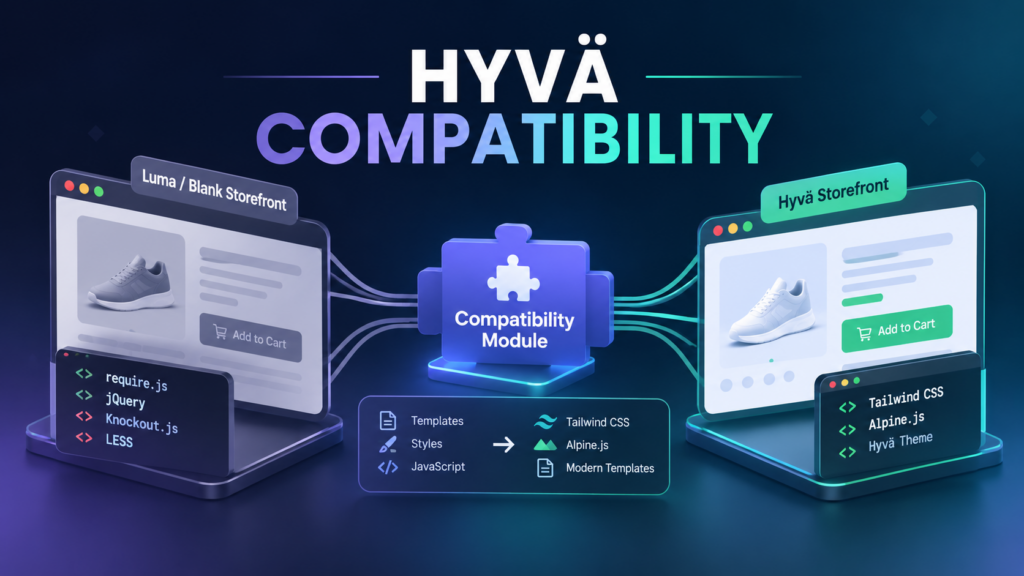
Hyva compatibility modules are small add-on modules that re-implement the parts of a Luma-based Magento extension that don’t work on a Hyvä storefront, usually templates, styles and JavaScript. You need one when an extension depends on Luma’s front end. Some extensions work as they are. Checked against Hyvä’s documentation on 18 November 2026.
Key takeaways
- Magento modules built for the Luma or Blank themes need a compatibility module to work with Hyvä, according to Hyvä’s docs. The compatibility module re-implements only the parts that don’t work out of the box.
- Hyvä’s tracker uses four statuses: requested, accepted, published and compatible. “Compatible” means the extension works with Hyvä without any compatibility module.
- Compatibility modules can override templates automatically through a fallback module, with no extra layout XML. Price renderer templates are the documented exception.
- The work is mostly front end: converting RequireJS, jQuery and Knockout.js code to Alpine.js or plain JavaScript, and restyling with Tailwind CSS. Hyvä’s own wording is that the work is “for the most part” simple to follow. We haven’t measured effort, and you shouldn’t take that as a promise.
- Access to the compatibility module repositories on Hyvä’s GitLab needs a commercial Hyvä license. Check what your license covers before you plan a project around them.
Every Hyvä project hits the same moment. The design looks great, the pages are fast, and then somebody opens the checkout, or a product page with an extension on it, and part of it is missing or broken. The theme did its job. The extension was written for a different front end.
That’s the problem Hyva compatibility modules exist to solve. They’re how the Hyvä ecosystem lets a Luma-era extension work on a storefront that doesn’t use Luma’s JavaScript stack. If you’re planning a move to Hyvä, they’re the line item people forget to budget for. If you’re a developer, they’re the pattern you’ll end up writing.
We wrote this guide to Hyva compatibility modules from Hyvä’s official documentation, which we opened and read on 18 November 2026. We used the compatibility modules overview, the getting started page, the development guidelines, the technical deep dive, the page on migrating Luma JavaScript and templates, the page on core Magento compatibility modules, and a Hyvä blog post on the topic dated 12 April 2021. We didn’t use third-party tutorials as sources, and we don’t name any third-party extension as being compatible or not. Hyvä keeps that information in its Compatibility Module Tracker, and we didn’t read the tracker’s contents.
Two notes on wording. Hyvä’s brand name has an umlaut, and people searching for it often leave it off, so you’ll see both spellings here. And where something is our advice rather than Hyvä’s, we say so.
If you’re earlier in the journey with Hyva compatibility modules, our guides on how Hyvä works and how to install the Hyvä theme give the background. This post picks up at the point where you’ve got a Hyvä storefront and a list of extensions.
What are Hyva compatibility modules, and why do Hyvä stores need them?
A compatibility module is a separate Magento module that re-implements the parts of an original module that don’t work in a Hyvä storefront. Hyvä’s docs say that modules based on Magento’s Luma or Blank themes require one to work with Hyvä.
The reason is the front-end stack. A Hyvä blog post from 2021, written by Vinai Kopp, describes the out-of-the-box Magento front end as using LESS, RequireJS, jQuery and Knockout.js, and in Hyvä’s opinion, “a lot of other very dated and bloated libraries.” Hyvä uses Tailwind CSS and Alpine.js instead. That’s Hyvä’s own view of its competition, so read it as a position, not a neutral fact. What matters for you is the practical consequence: a module whose templates depend on the old libraries has nothing to run on when those libraries aren’t there.
According to that same post, the work usually stays within template files. Sometimes a plugin that interferes with the view layer also has to be adjusted. Styles get converted to Tailwind CSS, and JavaScript built with RequireJS, jQuery or Knockout gets converted to Alpine.js or native JavaScript.
Notice what’s missing from that description of Hyva compatibility modules: the module’s business logic. A compatibility module re-implements the front end, not the extension’s PHP back end. Your original extension stays installed and keeps doing its job. The compatibility module sits beside it and replaces what the shopper sees and interacts with.
Here’s how the pieces around Hyva compatibility modules relate:
| Piece | What it is | Who writes it |
|---|---|---|
| Original module | The Luma-era extension, with back-end logic and Luma-based front end | The extension vendor |
| Compatibility module | A separate module that re-implements the incompatible front-end parts for Hyvä | Hyvä, the vendor or a community contributor |
| Hyvä theme | The storefront theme that provides Tailwind CSS and Alpine.js | Hyvä |
One more point, from the 2021 post. Some compatibility modules don’t cover 100% of the original module’s features, and others can be extended through a merge request. So “a compatibility module exists” doesn’t automatically mean “every feature works.” Test the features you actually use.
Do all extensions need one of the Hyva compatibility modules?
No. Some extensions work with Hyvä as they are. Hyvä’s tracker has a status for exactly that, which we cover in the next section. The ones that need a compatibility module are those whose front-end parts depend on Luma’s JavaScript and templates.
Hyvä’s docs describe the effort in a measured way: “for the most part it’s rather straight forward,” they say, which is Hyvä’s description and not something we’ve measured. Effort varies by module. A small extension that adds one block to a product page is a very different job from an extension that rebuilds the checkout.
As our advice, not Hyvä’s: sort your extensions into three groups before you start.
| Group | What to do |
|---|---|
| Back-end only, no storefront output | Usually no front-end work, but confirm by testing |
| Storefront output, a compatibility module exists | Install it and test the features you use |
| Storefront output, nothing exists | Decide: build one, ask the vendor, replace the extension or drop the feature |
That third group is where budgets go wrong. If a revenue-critical feature depends on an extension with no compatibility module, that’s a project inside your project.
If you’re comparing Hyvä with the default Luma storefront at this stage, our post on Hyvä vs Luma covers the differences that matter for planning.
How does the Compatibility Module Tracker work?
The tracker is Hyvä’s public record of which extensions have compatibility modules, and in what state. Hyvä’s docs say that available modules and their state are listed in the Compatibility Module Tracker. The 2021 blog post describes it as a GitLab board with four columns.
| Column | What it means |
|---|---|
| Requested | The extension isn’t compatible yet, and someone has asked for it |
| Accepted | The module will be made available, but isn’t in active development |
| Published | A compatibility module exists |
| Compatible | No compatibility module is needed because the extension works with Hyvä natively |
The same post says license holders can upvote requests with a thumbs-up, and that highly voted ones would be considered for implementation by the Hyvä team. That’s a 2021 statement. We haven’t read anything more recent on how requests are prioritised, so don’t treat it as current policy. If a request matters to you, check the tracker and the current docs.
If there’s no ticket for an extension, Hyvä’s getting started guide says you create a “Module Request” issue in the tracker.
Two limits on what we can tell you. First, we didn’t read the tracker’s contents, so we don’t know which extensions are in which column today. Second, tracker status is only one input. A “published” module can lag behind the latest extension version, and a module marked “compatible” can still behave differently on your particular store. Our advice: use the tracker to build your shortlist, then test on a staging store with your real data and configuration.
If you’d like help scoping that audit, see our pages on Hyvä theme customisation and moving Magento to Hyvä.
How do template overrides work in Hyva compatibility modules?
Compatibility modules can replace the original module’s templates automatically, without any layout XML. That’s the big convenience in Hyvä’s design. It works through a small package called hyva-themes/magento2-compat-module-fallback.
Here’s what Hyvä’s technical deep dive says. The fallback module injects the compatibility module’s template directory into Magento’s design fallback path for the original module’s files. So to override a template, you create a file with the same name in the compatibility module’s view/frontend/templates folder. No extra layout XML is needed. Hyvä’s naming example is an original module called Orig_Module with a compatibility module called Hyva_OrigModule.
This is available to compatibility modules only. A normal module doesn’t get the automatic override behavior.
To make it work, the compatibility module registers itself. Per the docs, you declare the pairing in etc/frontend/di.xml, using the compatModules argument of Hyva\CompatModuleFallback\Model\CompatModuleRegistry. Each item names an original_module and a compat_module. We’re describing that from the docs rather than reproducing the XML, because the exact syntax is best copied from Hyvä’s page for your version.
There are two details that trip people up.
Overriding a compatibility module’s template inside your theme. You use the original module’s name in the path, not the compatibility module’s name. Hyvä’s example is the Mirasvit_Gdpr module’s cookie_bar.phtml, which a theme overrides at app/design/frontend/Vendor/theme/Mirasvit_Gdpr/templates/cookie_bar.phtml. We’re quoting the path as Hyvä’s illustration of the rule, not saying anything about that extension’s compatibility.
Price renderer templates are an exception. Hyvä says the automatic override doesn’t work for them. You override price renderer templates using layout XML instead.
So the rule of thumb is: automatic override for ordinary templates, layout XML for price renderers. If a price on your category page looks wrong after installing one of the Hyva compatibility modules, that’s the first place to look.
What changes between Luma code and Hyvä code?
The JavaScript model changes the most. Hyvä’s guide to migrating Luma JavaScript and templates describes the shift in clear terms. In Luma, scripts tend to be small external files loaded through data-mage-init or require(). In Hyvä, most JavaScript is inlined in the .phtml template, which Hyvä says makes templates self-contained, reusable UI components and helps page speed.
Hyvä lists the process for inlining a script:
- Declare a new function in a
<script>tag inside the.phtmltemplate, with a unique name to avoid global scope conflicts. - Register it with Alpine inside an
alpine:initevent listener, usingAlpine.data. - Copy the contents of the original RequireJS module into the new function.
- Replace the dependencies. Most of the time, libraries like jQuery can be replaced with native JavaScript. Sometimes another external script has to be inlined.
- Call the function. The timing depends on its dependencies: code that depends on customer section data is called as a private-content-loaded event subscriber, code in the page header that depends on the global
window.hyvaobject is called as aDOMContentLoadedsubscriber sohyvais defined, and otherwise you can usually call it inline right after the definition.
There are three other conversions the guide covers.
Templates. Luma often uses <script type="text/x-magento-template"> tags, processed by mage/template and Underscore.js, to render arrays into the page. Hyvä doesn’t use those libraries, so they become Alpine.js templates, typically with the x-for directive. To get the current index, you use the (item, index) syntax.
jQuery’s data() function. It reads data-* attributes, and it has behaviors that native code doesn’t: it caches values and auto-parses JSON. The native equivalent is element.dataset. The key difference, per Hyvä, is that dataset is a live view. If the attribute is removed from the page, the value is gone. If you need to cache the value, you do it yourself, and Hyvä’s pattern is to parse the JSON and store it on a custom property of the element.
Underscore.js functions. Hyvä gives a short table of native equivalents. For example, _.isArray(x) becomes Array.isArray(x). For jQuery, it doesn’t maintain a list and points to the “You Might Not Need jQuery” guide.
What this tells you about Hyva compatibility modules, in plain terms, is that the conversion is a rewrite of front-end behavior, not a find-and-replace. Developers who know Alpine.js and Tailwind CSS will find it tidy. Developers who don’t will need time to learn them first, and Hyvä’s prerequisites list says exactly that.
If you’re weighing the human side of this, our guide on how to hire a Hyvä developer covers what to look for.
How do you build a Hyva compatibility module, step by step?
Hyvä’s development guidelines are written for creating a new compatibility module from scratch, and they describe a loop rather than a fixed recipe. Hyvä says the process is slightly different every time, depending on the original module.
Before you start. Hyvä’s getting started page lists the prerequisites: Magento 2 front-end development, PHP, JavaScript, git, installing and setting up the Hyvä theme, and the basics of Alpine.js and Tailwind CSS. It also gives two tips. Set up a Luma reference store view next to the Hyvä store view so you can compare behavior, and use IDE plugins for Alpine.js and Tailwind.
The loop. Hyvä’s guidelines describe it like this:
- Choose a page that includes some functionality from the module.
- Open that page in a private browser window in the Luma reference store view.
- Open the same page in the Hyvä store view.
- Open the browser console in the Hyvä view and look for errors. Hyvä’s example is
require is not defined. - Find the template in the original module that’s causing the error.
- Copy that template into the compatibility module at the same path under
view/frontend/templates. - Open the copy and inline the JavaScript, converting it to vanilla JavaScript and Alpine.js. Style it with Tailwind CSS.
- Once the template renders without errors and the feature works, clean up the code and move on to the next template.
Hyvä adds a tip for pages where several templates cause errors: copy them all into the compatibility module and short-circuit them with an early <?php return; ?>, so you can get them working one after the other. Its advice is to take one small step after another instead of tackling everything at once.
Naming. Hyvä’s conventions are specific, and following them matters because the fallback mechanism and Composer both depend on names.
| Item | Convention | Hyvä’s example |
|---|---|---|
| Magento module name | Hyva namespace plus original namespace and name joined | Smile_ElasticSuite becomes Hyva_SmileElasticSuite |
| Composer package | hyva-themes/magento2-<original-module> | smile/magento-elasticsuite becomes hyva-themes/magento2-smile-elasticsuite |
| External repository package | Include hyva in the package name | my-org/magento-integration becomes my-org/magento-hyva-integration |
The first two examples use a real extension’s name purely to show the naming pattern. We’re not saying anything about that extension’s compatibility.
Folder structure. A compatibility module follows a minimal structure, per Hyvä: a LICENSE.md, a README.md, a composer.json, and a src folder containing etc/frontend/di.xml, etc/module.xml and registration.php. Tests go in a tests/ folder beside src/. The LICENSE.md is a copy of the Hyvä Themes Software User License and must not be changed.
Coding standards. Hyvä says it follows the Magento 2 coding standard and expects compatibility modules to do the same, using tools like PHP CodeSniffer and PHP Mess Detector. If a rule doesn’t make sense in a specific case, it’s okay to disable it, as specifically as possible. Templates should annotate the variables assigned to them at the top of the file, such as the block, the escaper and the view model registry, and import class names, which Hyvä says makes the code easier to understand.
Copyright notices. Hyvä’s rule is that a file very similar to one in Hyvä core keeps the Hyvä notice. A file created from scratch can use either notice, and if you use your own, you add a line allowing the code to be used with Hyvä installations.
How do you work on Hyva compatibility modules locally?
Hyvä describes three ways to work on a compatibility module during development, and it recommends the third.
| Method | How it works |
|---|---|
Clone into app/code | The module sits directly in the Magento code folder |
| Composer git source | Use a git source with --prefer-source |
| Composer path repository | Clone to a local-src/ folder and add it as a Composer path repository |
With the path repository, Composer symlinks the module into vendor/hyva-themes/magento2-your-module. Two practical notes from the docs: if you hit a minimum-stability error, add the :dev-main suffix to the version, and in virtualized development environments, Hyvä mentions Warden as an example, a path repository can have issues when the .git folder isn’t synced.
None of that is magic specific to Hyva compatibility modules. It’s ordinary Composer workflow, and a developer who’s used path repositories will find it familiar.
How do Tailwind styles and hyva-themes.json fit in?
Your compatibility module’s CSS only reaches the storefront if the theme’s build knows to scan it. That’s what the hyva-themes.json file is for. Hyvä’s technical deep dive explains that the @hyva-themes/hyva-modules npm package scans the modules registered in app/etc/hyva-themes.json and merges their Tailwind assets into the theme’s build.
Per the docs, hyva-themes.json lists the installed modules that are scanned for Tailwind configuration and CSS. Compatibility modules that use automatic template overrides are registered in it automatically.
Hyvä describes two ways to supply Tailwind assets from a module:
| Approach | What you provide | Notes |
|---|---|---|
| Modern, recommended for Tailwind v4 | A single module.css in view/frontend/tailwind/, using @source directives and @import | When present, the build ignores tailwind.config.js and tailwind-source.css |
| Legacy | A tailwind.config.js and a tailwind-source.css | For v3, purge.content is merged. For v4, a generic @source scans all .phtml and .xml files in the module, with no deep merge. In tailwind-source.css, v4 requires explicit relative paths for imports |
If you’re on a version of Tailwind that doesn’t match what the module expects, styles can go missing even though the template renders. When a compatibility module installs cleanly but looks unstyled, check which approach it uses and which Tailwind version your theme builds with. That’s our debugging advice, based on how the mechanism works.
Removing a module from the scan. Sometimes you don’t want a module’s assets included. Hyvä documents two ways. The first is the exclusions argument of Hyva\CompatModuleFallback\Observer\HyvaThemeHyvaConfigGenerateBefore in di.xml, available since release 1.1.3 of the fallback module. Before that, you’d have to disable the module completely. The second is to disable the registration observer for the hyva_config_generate_before event in frontend/events.xml. Hyvä says some modules use both methods.
We don’t recommend reaching for exclusions early. Our advice: exclude a module only when you know why its assets conflict, and write that reason down where the next developer will find it.
What about layout XML for Adobe Commerce and B2B modules?
For Adobe Commerce and B2B modules, you’ll often need to add layout blocks back yourself. Hyvä’s page on core Magento compatibility modules explains why. The Hyvä reset theme removes all the layout XML declarations from the original modules. Hyvä’s example is the Magento_Banner module’s default.xml, where the banner.data block is commented out, with the comment left as a reference to what would normally be there.
The reason, per Hyvä, is that it isn’t based on Luma. It’s a new theme developed from scratch. Hyvä says it makes an effort to keep all containers and extension points available.
The fix for this situation, according to the docs, is to create a hyva_default.xml layout file in the compatibility module and add the required blocks again.
If your store runs Adobe Commerce features or B2B, this is the part of the plan to read twice. Hyvä’s page tells you that blocks you’re used to seeing are intentionally absent, so a feature that silently doesn’t appear may be missing its block rather than broken. We haven’t read which Adobe Commerce modules have Hyvä compatibility modules today, so check Hyvä’s current documentation before you commit.
Does the cart type affect your compatibility module?
Yes, it can. Hyvä’s technical deep dive explains that since Hyvä 1.1.15, the default cart is a server-side rendered “PHP Cart.” Earlier versions used a client-side “GraphQL Cart.” An extension called hyva-themes/magento2-graphql-cart lets you switch between them.
For compatibility module authors, Hyvä’s advice is that modules should ideally support both. Two layout handles exist for the two types: hyva_checkout_cart_type_php.xml and hyva_checkout_cart_type_graphql.xml. Two configuration flags control the choice: hyva_themes_cart/general/php_cart_enabled and hyva_themes_cart/general/graphql_cart_enabled.
Why do cart types matter for Hyva compatibility modules, and for you as a store owner? If an extension adds something to the cart, such as a custom line, a field or a message, its compatibility module has to work with whichever cart type your store uses. Our advice: when you test a cart-related compatibility module, test it with the cart type you run in production, and check whether the module’s documentation says which it supports.
If checkout is where your extension list hurts most, our comparison of Hyvä Checkout and one-step checkout extensions covers that decision. It’s a related question, though not the same one as compatibility modules.
How do you make your own module Hyvä-compatible without a separate module?
If you own the extension’s code, you can often make it compatible in place instead of writing a separate module. Hyvä’s getting started page covers this under “making existing modules Hyvä-compatible,” and its overview page says the same thing: register the module for inclusion in hyva-themes.json.
The docs set out what that involves:
- Register the module in
hyva-themes.jsonso the theme scans it for CSS. - Make templates, CSS and JavaScript work with both Luma and Hyvä. That’s the part that takes thought. Your module has to serve both front ends.
- Load Hyvä-specific
.phtmland JavaScript through layout XML with thehyva_prefix, so Luma ignores them.
The trade-off is clear from that list. A compatibility module is a clean separation: the original stays as it is and the compatibility module handles Hyvä. Making a module compatible in place keeps everything in one package but means your code carries two front ends. Which is better depends on who owns the extension and whether you need to keep serving Luma. If you’re building an extension for sale and want both audiences, in-place compatibility is the route Hyvä’s docs describe. If you’re adapting someone else’s extension for your own store, a separate compatibility module is usually the one that fits.
That last sentence is our reading of the trade-off, not a statement from Hyvä.
Who can access compatibility module repositories, and how do you contribute?
Hyvä’s getting started page lists three contribution areas. Compatibility modules are one, and Hyvä says a commercial Hyvä license is required for access on gitlab.hyva.io. The other two are Hyvä React Checkout and Hyvä Admin, both of which Hyvä describes as open source and free on GitHub.
The process Hyvä describes for a compatibility module looks like this:
- Ask the Hyvä team to create a repository with a skeleton in the Hyvä Compat group on GitLab.
- If there’s no ticket for the extension in the tracker, create a “Module Request” issue.
- Clone the repository, create a branch and write the code.
- Open a merge request. A maintainer may merge it to the main branch.
- Add a
1.0.0tag so the module is installable via packagist.com. - The Hyvä team changes the tracker label to “Published.”
For compatibility modules published in the hyva-themes Composer namespace, the 2021 blog post says they’re installable through Hyvä’s packagist.com account once tagged.
The license point matters when you budget for Hyva compatibility modules. If your agency or developer doesn’t hold a Hyvä license, they may not be able to see or contribute to the repositories. We haven’t read Hyvä’s current license terms, so check them directly before you build a plan on repository access.
How should you plan extension compatibility before a Hyvä move?
Audit first, then test, then decide on your Hyva compatibility modules. Here’s a plan, and it’s our advice built on the mechanisms above.
| Step | What you do | Why |
|---|---|---|
| 1 | List every extension that outputs anything on the storefront | Back-end-only extensions rarely need front-end work |
| 2 | Check each one in the Compatibility Module Tracker | Status tells you whether to expect a module |
| 3 | Ask each vendor whether they offer Hyvä support | A vendor-supported module may be better maintained |
| 4 | Install on staging with a Luma reference store view | Lets you compare behavior side by side |
| 5 | Test the features you actually use, including the cart type you run | A module may not cover every feature |
| 6 | Decide for each gap: build, request, replace or drop | Budget the gaps early |
For the budget conversation about Hyva compatibility modules, the important thing is that “compatible” is a spectrum. An extension with a published module and a clean test is cheap. An extension with a module that covers 80% of what you use is a small project. An extension with nothing is a bigger one. We won’t put figures on those, because nothing we read supports numbers.
For the migration project as a whole, our guide to implementing Hyvä for Magento 2 covers the wider picture, and our page on moving Magento to Hyvä describes how we can help.
What mistakes should you avoid with Hyva compatibility modules?
These all follow from Hyvä’s documentation on Hyva compatibility modules. The advice on avoiding them is ours.
Assuming “published” means “complete.” The 2021 Hyvä post says some modules don’t cover everything in the original. Test the features you use.
Skipping the Luma reference view. Hyvä’s own tips say to set up a Luma reference store view next to the Hyvä one. It’s the fastest way to see what should happen.
Overriding templates by the wrong module name. In your theme, you use the original module’s name in the path, not the compatibility module’s.
Forgetting price renderers. Automatic overrides don’t work for price renderer templates. Use layout XML.
Expecting Adobe Commerce blocks to be there. The reset theme removes layout declarations, so you may need a hyva_default.xml to add them back.
Ignoring the cart type. Since Hyvä 1.1.15 the default is the PHP Cart. Test against the one your store uses.
Treating the tracker as a guarantee. It’s a board, and a status isn’t a test result.
Relying on a 2021 blog post for current policy. Hyvä’s documentation is the live source. Use the blog for background, and the docs for decisions.
Frequently asked questions
What are Hyva compatibility modules?
It’s a separate Magento module that re-implements the parts of an original module that don’t work in a Hyvä storefront. Hyvä’s docs say modules based on Luma or Blank themes need one to work with Hyvä. It mostly changes templates, styles and JavaScript, not the extension’s back-end logic.
Do I need one of the Hyva compatibility modules for every extension?
No. Some extensions work with Hyvä as they are, and Hyvä’s tracker has a “Compatible” status for them. Extensions with no storefront output usually need no front-end work. Check the tracker, then test on staging.
What is the Compatibility Module Tracker?
It’s Hyvä’s public board showing the state of compatibility modules. A 2021 Hyvä post describes four columns: requested, accepted, published and compatible. We didn’t read the tracker’s current contents, so check it directly for the extensions you use.
How do template overrides work in a compatibility module?
Hyvä’s fallback module adds the compatibility module’s template folder to Magento’s design fallback path. You create a file with the same name in the compatibility module’s view/frontend/templates folder, and no layout XML is needed. Price renderer templates are the exception and need layout XML.
What replaces RequireJS and jQuery in Hyvä?
Alpine.js and native JavaScript, per Hyvä’s docs. Most scripts are inlined in the .phtml template, and x-magento-template blocks become Alpine.js x-for templates. Styling moves to Tailwind CSS.
Can I get access to the compatibility module repositories?
Hyvä says a commercial Hyvä license is required for access to compatibility modules on its GitLab. Check the current license terms with Hyvä before you plan around repository access.
Does Hyvä work with Adobe Commerce and B2B modules?
Hyvä’s docs describe writing compatibility modules for Adobe Commerce and B2B, and explain that the reset theme removes the original layout XML declarations, so blocks must be re-added in a hyva_default.xml. We didn’t verify which specific modules have compatibility modules today.
Where to go from here
Start your plan for Hyva compatibility modules with the list of extensions that put anything on your storefront, then check each one against Hyvä’s tracker. If you want help scoping it, read about our Hyvä theme customisation work or our Magento to Hyvä migration service, and use our guide to implementing Hyvä for Magento 2 for the overall project.